
Reference guide · migration-hosting · Published 2026-08-16 · 3 min read
WP-CLI versus a hosting panel for maintenance
WP-CLI versus a hosting panel: what each handles, where the boundary sits, and the paired sequence for site maintenance.
- ·The panel's half
- ·WP-CLI's half
- ·When each wins
The actual division of labour
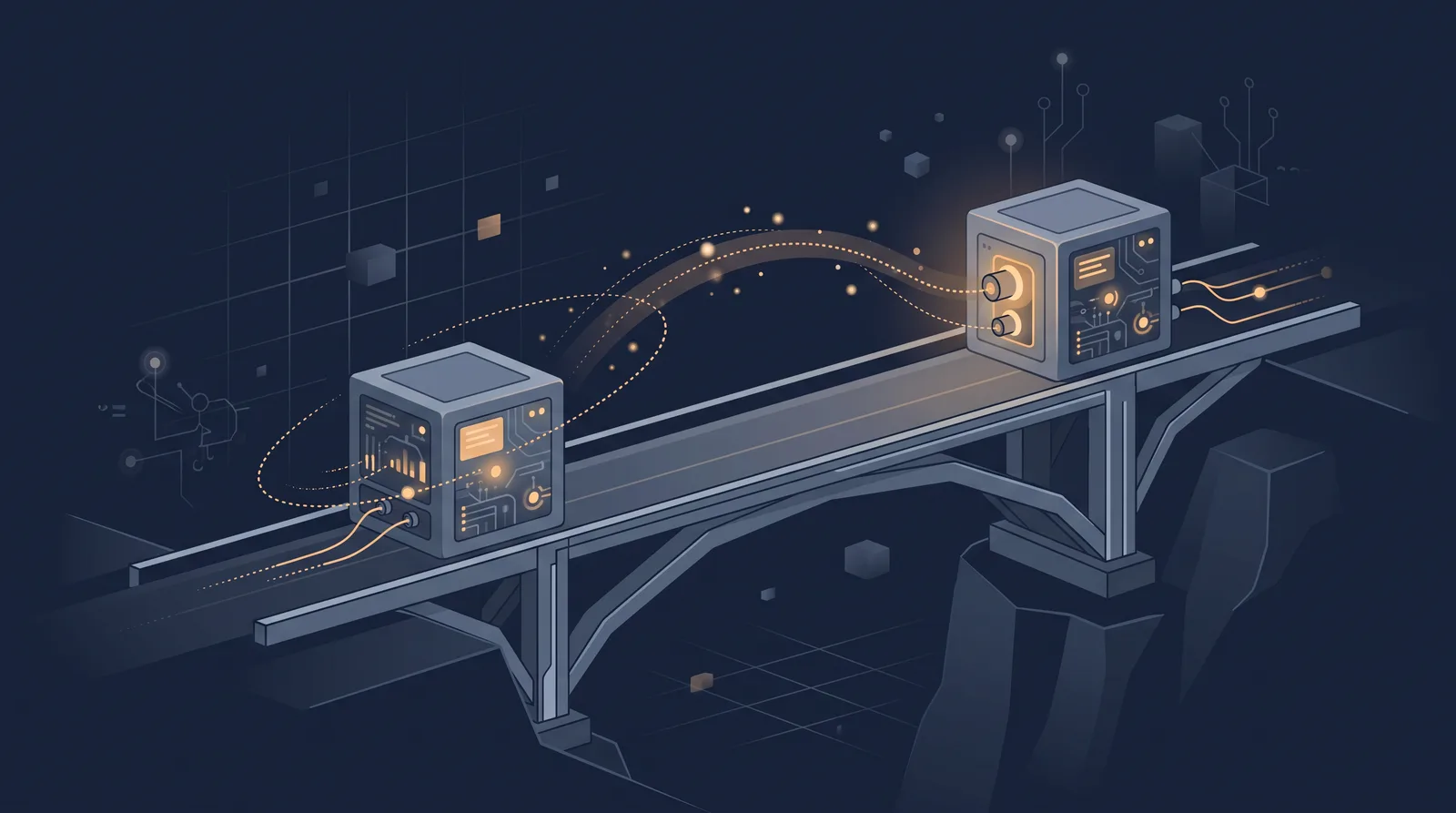
A hosting panel (cPanel, DirectAdmin, Plesk) and WP-CLI both administer a WordPress site, and their methods barely overlap. The panel is a graphical layer over the server that manages files, domains, databases, email, FTP and SSL. WP-CLI is a command-line tool inside a WordPress install that manages the site's own database and file patterns without touching the server's operating system.
The difference in operation shows in every task:
| Task | Hosting panel | WP-CLI |
|---|---|---|
| Create a domain or addon | Yes, at the server level | No |
| Move files around | File Manager, or the transfer tools | Rsync or shell tools (no file manager inside WP) |
| Manage the database | phpMyAdmin or the DB wizard | wp db query, wp search-replace |
| Install and update plugins | Via the site admin | wp plugin install, wp plugin update |
| Run cron and scheduling | The panel's cron UI | wp cron event run plus the server scheduler |
| Issue SSL / manage TLS | The panel's certificate tools | No, TLS belongs to the server layer |
Why the panel stays the shell
The panel remains the only place the server-level things live: creating the account, pointing the domain, the email accounts, the backup schedule, the firewall overlay, and the certificate that covers the hostname. For a single shared-hosting account, most day-to-day work will flow through the panel's file manager and the site admin.
The panel is also the safe first place to start. If you have no SSH, the panel is the entire operating surface, from the basics to the domain layer. It is the layer the host documents thoroughly and the one that owns the server.
Why WP-CLI wins at WordPress tasks
Where the panel covers the server, WP-CLI covers the WordPress site itself:
wp plugin install,wp plugin update --all, andwp plugin activaterun updates without the browser.wp core,wp db, andwp maintenancedrive the core and database maintenance checks, including the repair and cache-flush flows.wp search-replacecorrects a broken domain in content and the database before the browser caches anything.- Bulk post or user changes run by script instead of clicking the editor.
The useful mental model: WP-CLI is a terminal client into one WordPress install, the panel is a terminal into the server. On shared hosting the panel owns the OS and WP-CLI owns the site.
The paired sequence
A typical fix uses both, in order:
- In the panel, snapshot the backup or enable maintenance mode first, the rollback rule.
- Open the panel terminal or SSH and run the WP-CLI command (plugin update, search-replace, cache flush).
- Use the panel to clear opcache or, if the PHP service needs a version bump, reload it from the panel.
- Confirm the result in the site admin, then take the site out of maintenance.
Every task that crosses the boundary lives in this sequence: make the server change, run the WordPress operation, verify.
When the panel alone is right
A panel lets you do almost everything without a shell, so "how do I manage this one WordPress site" still starts with the panel. The order that sticks: panel for the server, command line for the site, and the move or staging flows only touch one pair at a time. The troubleshooting order covers the practical sequence when the two disagree.