
Tutorial · migration-hosting · Published 2026-08-16 · 3 min read
Exporting and importing a large database
Export and import large MySQL databases despite memory, upload and timeout limits, using mysqldump, gzip, and safe destination-side import.
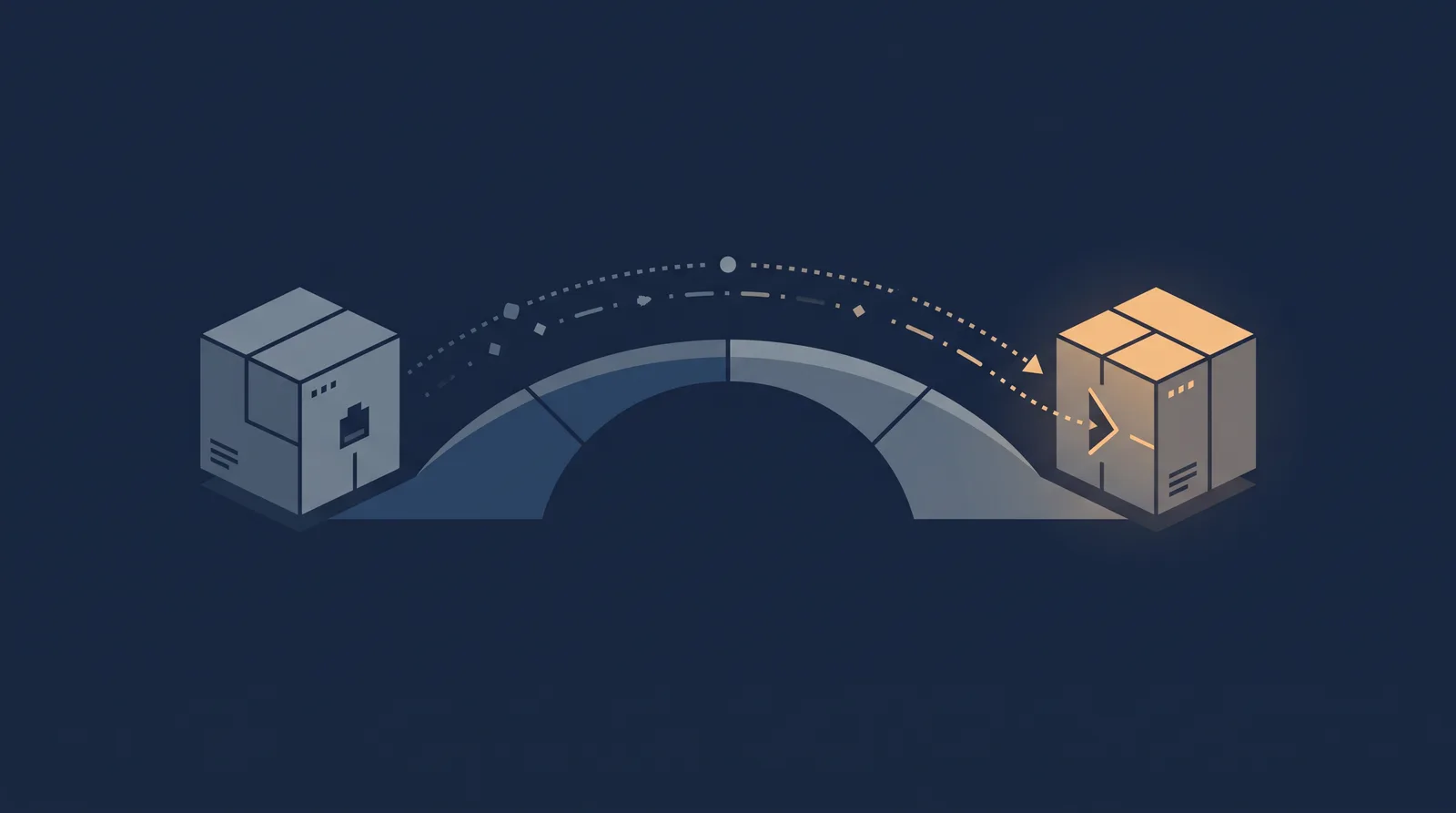
Moving a large database is where control-panel tools give up first. A big SQL dump can exceed PHP upload limits, block on an execution-time error, or quietly time out, and the failure usually leaves the destination mid-import. The reliable path for a site with hundreds of megabytes or more is the command line: export on the source server, compress, transfer, and import on the destination, keeping an eye on a few MySQL-specific limits on the way.
Prepare the source
Before any export, confirm the target database schema and version. A dump taken with a newer MySQL or MariaDB variant can carry syntax the older version does not accept, which matters when migrating between different hosts. Note the collation and engine of each table, because a default utf8mb4 and InnoDB set usually transfers cleanly, while an unusual default collation that worked only on the old server will not.
Plan an order of operations: export the structure and data, then handle security roles and any scheduled jobs separately. A dump of a large production database should be taken during low traffic and never assumed to be point-in-time correct on a site that writes constantly, unless you use a consistent snapshot or the --single-transaction flag with InnoDB to avoid locking the tables for the duration.
Export at scale
Use mysqldump on the source server's command line rather than a web interface. The workhorse command is:
mysqldump --single-transaction --quick --no-tablespaces \
  --routines --triggers -u user -p dbname | gzip > dbname.sql.gz
--single-transaction produces a consistent dump without locking tables for long-running reads on InnoDB, --quick streams rows instead of buffering them in memory, and gzip shrinks the transfer dramatically. Include --routines and --triggers if your app relies on stored procedures, functions or triggers, since they are not included by default on all versions. Verify the archive before deleting anything on the source:
gzip -t dbname.sql.gzThen move the archive from source to destination over SCP or via a transfer service, never through a form upload that bumps into PHP's upload_max_filesize.
Import at scale
On the destination, decompress and pipe the dump straight into mysql, again avoiding browser tools:
gunzip -c dbname.sql.gz | mysql -u user -p dbnameIf you imported with phpMyAdmin or a panel and hit a size ceiling, do not throw more memory at the web tool. Instead precreate the database and its user in the panel, then run the pipe above over the server command line, which bypasses PHP's execution_time entirely. When the archive is very large and the connection is unreliable, extract it first so you can resume a partial run, and watch the transfer and import in logs.
Two destination-side limits cause most "imported but broken" states. First, max_allowed_packet: a single huge row blocked by this setting drops the import with a lost-connection error, so raise it temporarily on the destination server or in the session. Second, innodb_buffer_pool_size: a small pool makes a big import slow and can appear to hang. If the destination is shared hosting and you cannot change these, split the dump into smaller logical chunks with --split-statements from a tool such as mysqldump-split, or import per-table segments.
After the import, run a checksum or row-count comparison on a few key tables on both sides, test the search-replace you need for domain or path changes (see the WordPress search-replace guide for that step), and only then point traffic at the new server. The caching and invalidation article covers the post-copy refresh that prevents users seeing stale data after a large database lands on a new host.